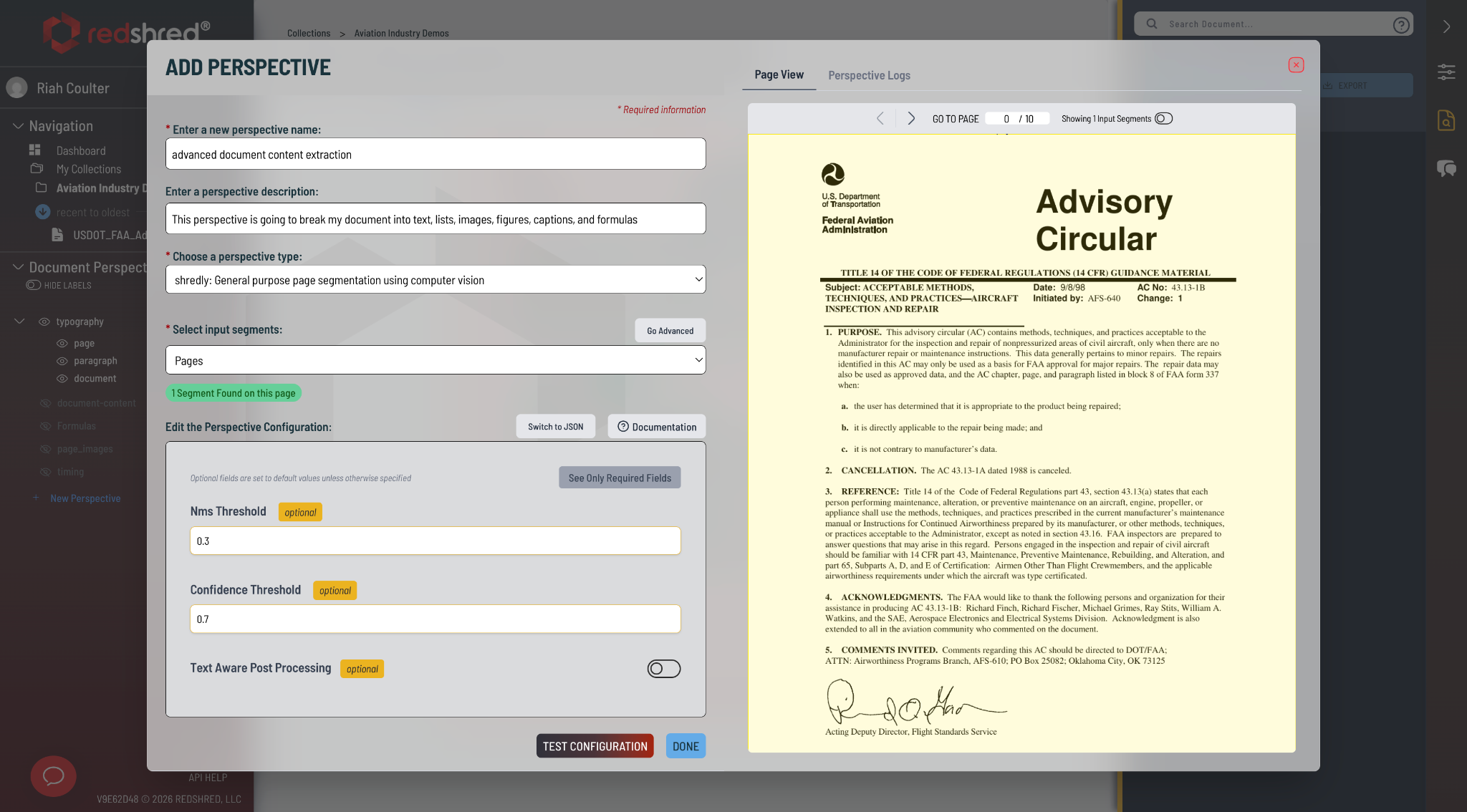
In this guide, we'll walk through how to create a Perspective in Redshred. Whether you're tailoring extractions for a specific role, question, or mission need, Perspectives are how you tell Redshred exactly what to look for — and where.
Creating a Perspective
Step 1: Open a Document
Navigate to an existing document in your Collection and open it in the Document Viewer.
Step 2: Open the Perspective Editor
In the Left-Hand Sidebar, click 'New Perspective' to open the Perspective Editor.
Step 3: Name Your Perspective
Give your Perspective a clear, descriptive name that helps you and your team immediately understand what layer of intelligence it captures. Good examples include:
"F-18 Engine Procedures"
"F-16 Wing Diagrams"
"Compliance Requirements"
"Abstracts and Conclusions"
You can also add an optional description to make it easier to identify and manage down the road — we recommend taking a moment to do this.
Step 4: Choose a Perspective Type
Select a Perspective Type from the dropdown. Think of Perspective Types as smart starting templates — each one comes pre-configured with default values tuned for a specific kind of extraction, giving you a strong starting point toward high-quality results right out of the box.
Note: The Selected Input Segments field will automatically populate with the segment type that pairs best with your chosen Perspective Type. If you need more granular control, switch to Advanced Mode to target specific segment types using the Redshred Query Language.
Step 5: Configure and Test
With your Perspective Type and Input Segments set, you have a few options before saving:
Pro Tip: Don't just test on one page — navigate to several pages across your document to validate performance throughout. A Perspective that works well on page 1 should work just as well on page 50.
Step 6: Save Your Perspective
Once you're satisfied with the output, click 'DONE' to save your configured Perspective to your Collection. Redshred will begin processing immediately, and your extracted intelligence will appear on the document as soon as it's ready.
Understanding Perspective Types
Foundational
Perspectives Table
Perspective name
Description
Tags
pdftotext
Extracts text from docs using pdftotext model
text
shredly
Extracts text, images, formulas, lists and list items, captions
textimageformulalistcaption
typography
Extracts text (basic)
text
sentences
Extracts individual sentences (breaks text into individual sentences)
sentence-segmentation
vectors
Stores information in a vectorized graph database for semantic retrieval
vectorsemantic
vlm parse
Extracts text with advanced optical character recognition
textOCR
regex
Extracts content based on pattern matching
pattern-based
model adapter
adapts and integrates external machine learning models to make perspectives
customization
Classifiers
Perspectives Table 2
Perspective name
Description
Tags
LLM Classifier
Labels information with paragraph by paragraph classification
single-classmulti-class
page extract
Extracts multiple structured fields from document pages
multi-label
gliner
Labels information with generative Named Entity Recognition
NER
llm highlighter
Identifies and highlights content using LLM model analysis
prompt-based
spacy
Breaks text into individual sentences
sentence-segmentation
Adjustments
Perspectives Table 2
Perspective name
Description
Tags
relabeler
reassigns segment labels
edit
Organization & Layout
Perspectives Table 3
Perspective name
Description
Tags
section breaker
Breaks documents into logical sections and segments; breaks on regex queries
layoutregex
list builder
Identifies and segments lists and list items
layoutlist
grouper
Segments elements on a page based on proximity
layoutproximity
indentifier
Labels regions by their indentation level
layoutindentation
Quality Assurance
Perspectives Table 4
Perspective name
Description
Tags
blindspot-detector
Finds any ink left on a document without a Redshred segment (information not captured in the Redshred document-as-a-database)
QA
evaluation
Evaluates a perspective against another ground truth perspective
QA
Images
Perspectives Table 5
Perspective name
Description
Tags
pdf images
Extracts image (basic)
image
page images
Generates high-quality page images at different DPI and resolution
image
shredly
Extracts text, images, formulas, lists and list items, and captions
textimageformulalistcaption
Tabular & Visual Data
Perspectives Table 6
Perspective name
Description
Tags
docling-table
Extracts tables and table cell content
table
flowchart-iris
Uses iris model to extract flowcharts on documents
flowchart
forms
Extracts form information by describing the expected fields
formform-fields
Export
Perspectives Table 7
Perspective name
Description
Tags
export
Takes segments and exports to JSON
exportjson
Known Formats
Perspectives Table 8
Perspective name
Description
Tags
honda-manuals
Extracts text, images, diagrams, and pictures from Honda maintenance manuals
textimagediagramlistpicturehonda
llm airmate classifier
Extracts text, images, diagrams, and pictures from AIRMATE criteria documents
textimagediagramlistpictureairmatecriteria
phm-iris-v2
Extracts text, images, diagrams, and pictures from Kohler engine documents
textimagediagramlistpicturekohler
public-tos
Extracts text, images, diagrams, and pictures from Air Force maintenance docs
textimagediagramlistpictureairforce
Custom
Perspectives Table 7
Perspective name
Description
Tags
external api
allows users to establish and call custom Perspectives with customized models and technical approaches
customization
And that's it — your Perspective is ready to go. Start applying it to your documents and let Redshred do the rest. Happy Redshredding!